05. Exercise: Add Dimensions and String Resources
23 5 AAK Create Resources SC V2
Exercise
In this exercise you will add dimensions and string resources.
- Define the dimensions that you'll be using for the clipped views in a new resources file in
res/values/dimens.xml. These default dimensions are hardcoded and sized to fit on a pretty small screen. There are dimensions for a clipping rectangle, some insets and offsets, and text styling.
<?xml version="1.0" encoding="utf-8"?>
<resources>
   <dimen name="clipRectRight">90dp</dimen>
   <dimen name="clipRectBottom">90dp</dimen>
   <dimen name="clipRectTop">0dp</dimen>
   <dimen name="clipRectLeft">0dp</dimen>

   <dimen name="rectInset">8dp</dimen>
   <dimen name="smallRectOffset">40dp</dimen>

   <dimen name="circleRadius">30dp</dimen>
   <dimen name="textOffset">20dp</dimen>
   <dimen name="strokeWidth">4dp</dimen>

   <dimen name="textSize">18sp</dimen>
</resources>
For the app to look good on a bigger screen (and to easier see details), you can create a dimens file with bigger values that only applies to bigger screens.
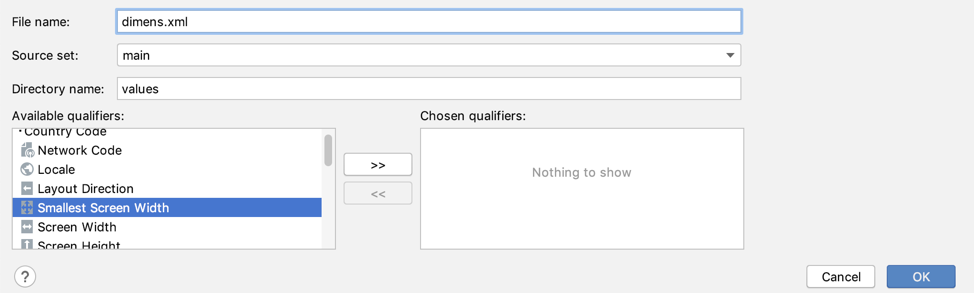
In Android Studio, right-click on the values folder and choose New > Values resource file.
In the New Resource File dialog, call the file
dimens.In Available qualifiers, select Smallest Screen Width and click the >> button to add it to the Chosen qualifiers.
Enter 480 into the Smallest screen width box and click OK.
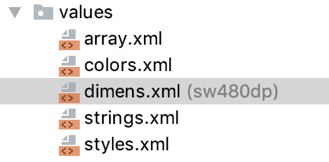
- The file should show in your values folder–– like right here.
- Replace the default contents of the
values-sw480dp/dimens.xmlfile with the given dimensions below.
<?xml version="1.0" encoding="utf-8"?>
<resources>
   <dimen name="clipRectRight">120dp</dimen>
   <dimen name="clipRectBottom">120dp</dimen>

   <dimen name="rectInset">10dp</dimen>
   <dimen name="smallRectOffset">50dp</dimen>

   <dimen name="circleRadius">40dp</dimen>
   <dimen name="textOffset">25dp</dimen>
   <dimen name="strokeWidth">6dp</dimen>
</resources>- In
strings.xml, add the following strings, also provided for you. These will be used to display text on the canvas.
<string name="clipping">Clipping</string>
<string name="translated">translated text</string>
<string name="skewed">"Skewed and "</string>